
Highlights
Style the quote from Settings
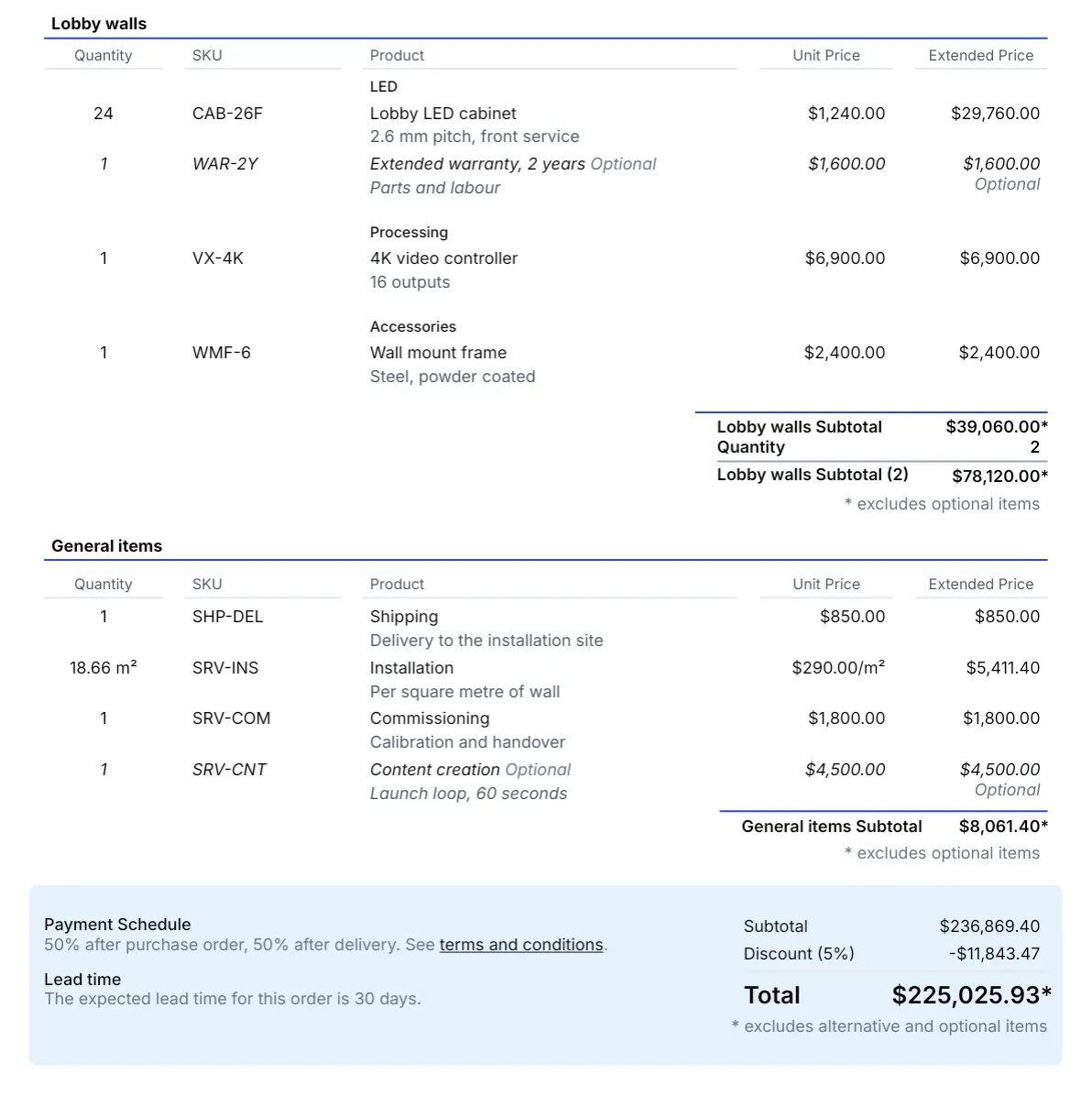
Each region can now set how its quotes look under Settings → Quote: text size, accent color, header style, corner radius, the header, totals and terms bands, subsection headers and how alternative options are shown. A new Totals group gives the totals band its own layout, color, text color and grand-total size.
A sample quote beside the form updates as you change a setting, and you can download it as a PDF before you save. Every quote matches your brand, without a template request.
Optional items in one checklist
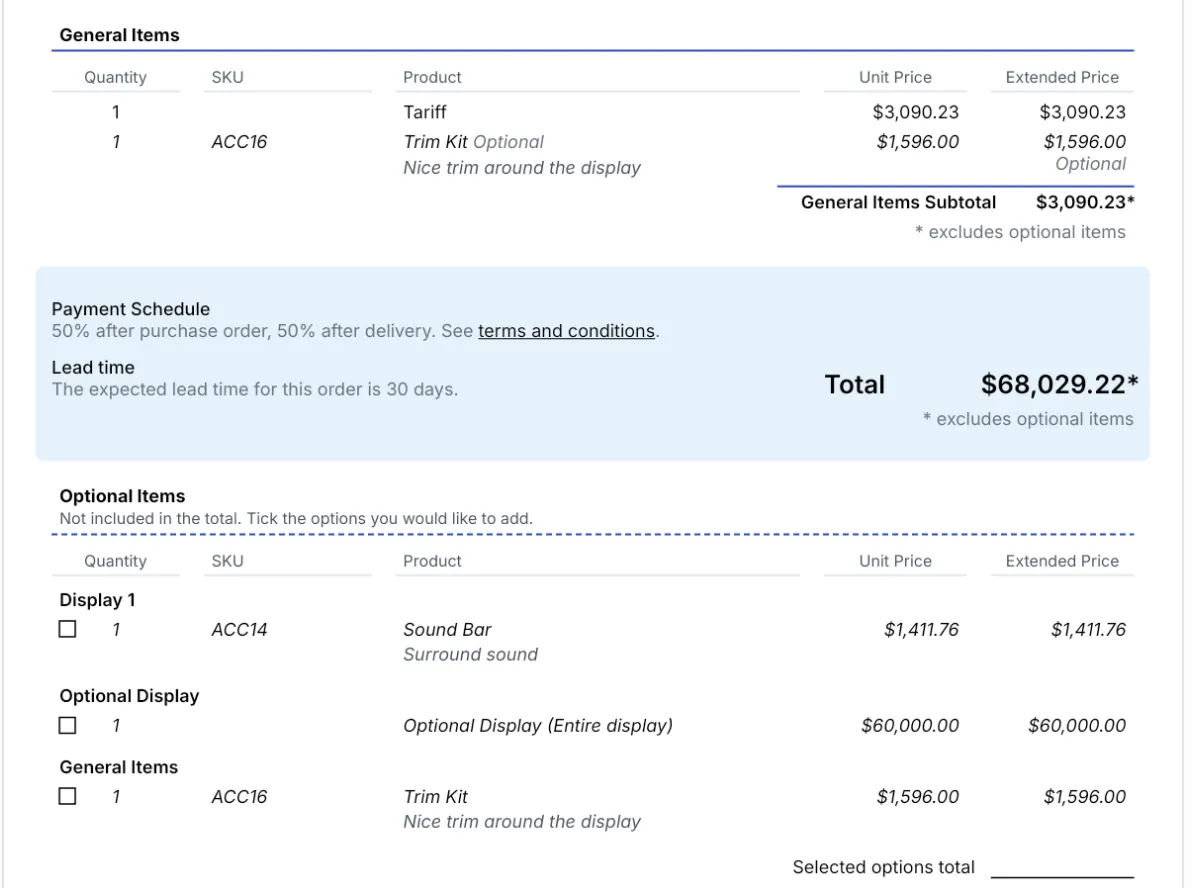
On long multi-display quotes, options were spread across sections, and customers added them up by hand. Quotes can now also collect every optional item in one Optional Items checklist below the total, grouped by display, with a checkbox per row and a Selected options total line. The quote total doesn’t change.
Set it as the region default in the quote settings with One Checklist Below the Total, or turn it on for a single quote with the Optional Items Checklist switch. Customers see every option and its price in one place.
More improvements
- Line-item discounts as a percentage or a fixed amount. Select line items and discount them by a percentage or by a fixed amount. A fixed amount is spread across the selection in proportion to price, every item stays within its discount limit, and you see the result before you apply it. The discount for the entire quote switches between Percentage and Fixed amount the same way.